How to Convert HEIC to JPG: A Practical 2026 Guide for Everyday Users
If you own a modern iPhone, you have almost certainly run into a file that simply will not open on a Windows PC, an older Android phone, or a website upload form. That file is usually a HEIC image. Learning how to convert HEIC to JPG quickly is one of the most useful skills for anyone who shares photos across different devices in 2026.
This guide explains what HEIC is, why Apple chose it, and the fastest ways to turn those files into universally compatible JPGs. You will also find a side-by-side format comparison, a short workflow, and answers to the questions people ask most often.
What Is HEIC and Why Does Apple Use It?
HEIC stands for High Efficiency Image Container, and it is based on the HEIF standard developed by the Moving Picture Experts Group. Apple adopted it as the default camera format starting with iOS 11 because it stores high-quality images at roughly half the file size of JPG.
Smaller files mean more photos on your phone and faster iCloud backups. The trade-off is compatibility. Many apps, content management systems, and printing kiosks still expect JPG or PNG, so a conversion step becomes necessary.
The compatibility gap in real life
Imagine you booked a hotel and the front desk asks you to email a scan of your passport photo. Your iPhone exports a HEIC, their system rejects it, and you are stuck in the lobby troubleshooting. A fast converter solves that problem in seconds, which is why reliable tools matter.
The Fastest Ways to Convert HEIC to JPG in 2026
There are three practical routes, and the right one depends on how often you convert and whether you want to install anything.
- Browser-based converters. Drag the file in, download the JPG. No install, works on any operating system.
- Built-in device settings. On iPhone you can set Camera to capture in Most Compatible mode, which saves JPGs directly.
- Desktop software. Good for large batches but heavier to set up and maintain.
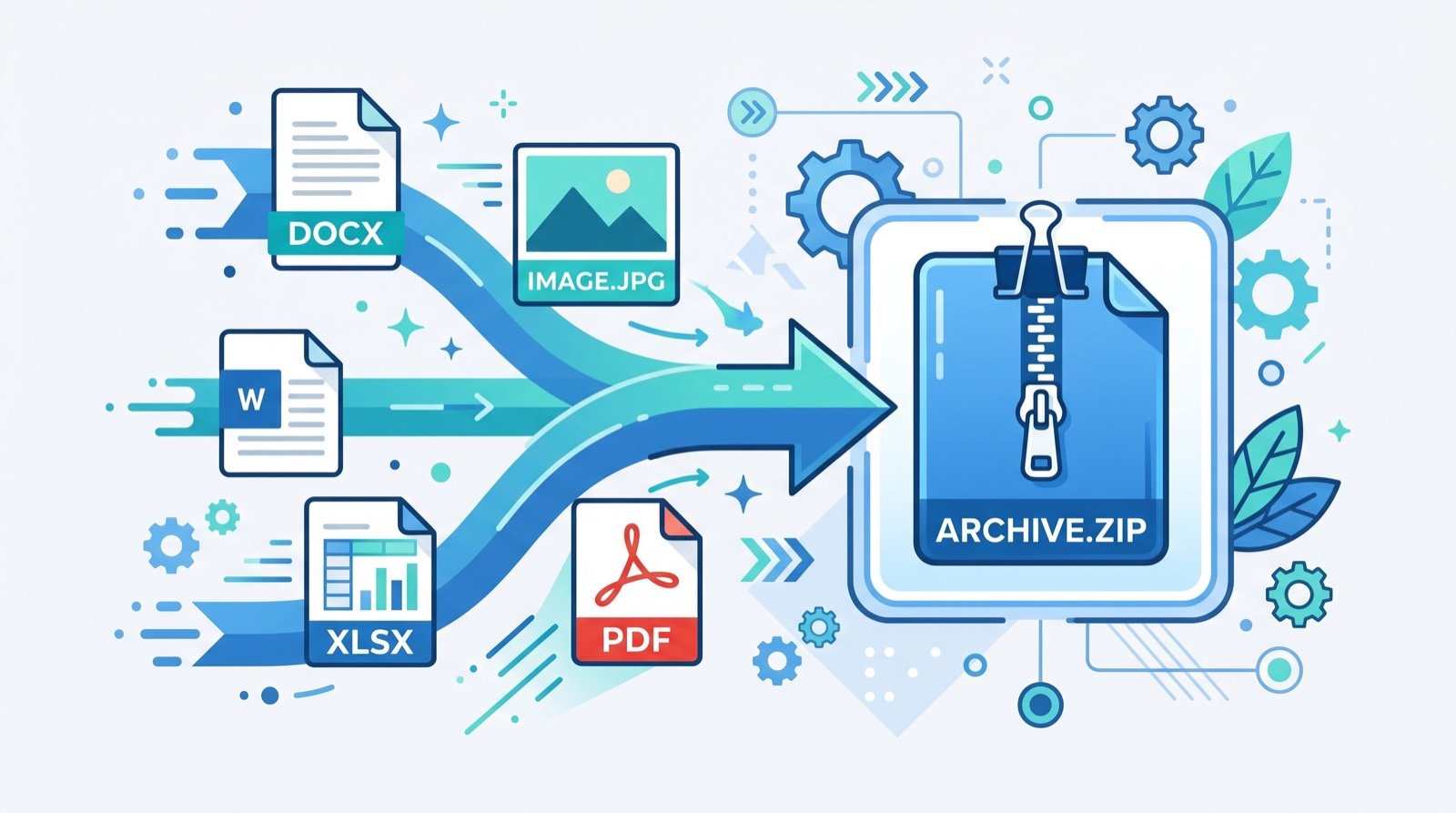
For most people, a clean web tool is the simplest option. You can convert a photo to HEIC to JPG online free in a few clicks without handing your library to a bulky program. Browser tools also run on Chromebooks and Linux machines where Apple software is unavailable.
A simple step-by-step workflow
- Open the converter in your browser.
- Drag in one or more HEIC files, or select them from your folder.
- Choose JPG as the output and set quality if offered.
- Download the converted files, ideally into a dated folder so you can find them later.
HEIC vs JPG vs PNG: A Quick Comparison
Choosing the right target format helps you avoid quality loss and wasted space. The table below summarizes the practical differences you will notice day to day.
| Feature | HEIC | JPG | PNG |
|---|---|---|---|
| Typical file size | Smallest | Small | Large |
| Universal compatibility | Limited | Excellent | Excellent |
| Transparency support | Yes | No | Yes |
| Best use | iPhone storage | Photos, sharing | Graphics, logos |
| Compression type | Lossy | Lossy | Lossless |
For a typical vacation photo you want to email or upload, JPG is the sweet spot. For a logo or screenshot with sharp edges and transparency, PNG wins. According to the World Wide Web Consortium, broad format support remains central to an accessible, interoperable web, which is exactly why JPG stays the safe default for sharing.
Why Does Privacy Matter When You Convert Images?
Photos often carry hidden metadata such as GPS coordinates and timestamps. When you upload images to a converter, you want to know how the file is handled. Reputable browser tools process files locally or delete them quickly after conversion.
Before you trust any service with personal pictures, check its privacy note. The best option is a tool that does not require an account and clears uploads automatically. When you need a broader set of image utilities, working with quality service providers who document their data practices gives you peace of mind.
Beyond HEIC: other handy image conversions
Image work rarely stops at one format. Web developers, for example, often need to embed small graphics directly into code rather than loading separate files. You can turn a vector file into an inline data string with an SVG to Base64 online free tool, which reduces HTTP requests and speeds up page loads.
That same convert-once, reuse-everywhere mindset applies to HEIC. Convert the originals once, store clean JPGs, and you will never fight an upload form again.
Batch Converting an Entire Photo Library
Converting one photo is easy, but what if you have hundreds of HEIC files from a year of travel? Batch conversion is where a good workflow saves real time. Instead of opening each image individually, you select a whole folder and convert everything in a single pass.
Before you run a big batch, take two precautions. First, keep a backup of the original HEIC files until you confirm the JPGs look correct. Second, decide on a consistent output quality so every photo matches. A quality setting around 85 to 90 percent keeps files small while preserving detail that matters for prints.
Naming and organizing your output
Large batches become a mess without a naming plan. Use clear, dated folder names like 2026-summer-trip so you can locate images months later. Many converters preserve the original filename, which makes it easy to match a JPG back to its source if you ever need to.
One practical tip from experience: convert in smaller groups of fifty or so rather than one giant batch. Smaller groups are easier to verify, and if something goes wrong you only re-run a handful of files instead of the entire library. This habit has saved me from re-processing thousands of images after a single setting mistake.
Frequently Asked Questions
Does converting HEIC to JPG reduce image quality?
There is a tiny quality change because both formats use lossy compression, but at high quality settings the difference is invisible to the human eye. For printing or sharing, a well-converted JPG looks identical to the original.
Can I convert HEIC to JPG on Windows without extra software?
Yes. A browser-based converter works on any Windows version without installing Apple codecs. You simply upload the HEIC and download the JPG, which is often faster than configuring system plugins.
Will I lose the photo date and location after converting?
Most converters preserve core EXIF data such as the capture date, though some strip GPS for privacy. If you need to keep location metadata, check the tool settings before you convert.
Is it safe to convert HEIC to JPG online for free?
It is safe when you use a trustworthy tool that deletes files after processing and does not demand a login. Avoid services that ask for unnecessary permissions or personal details.
Conclusion and Next Step
Converting HEIC to JPG is no longer a technical chore. With the right browser tool you can fix compatibility problems in seconds, keep your image quality intact, and protect your privacy. In 2026, the smartest approach is to convert once, store clean JPGs, and keep a reliable converter bookmarked.
Try a trusted converter the next time an upload form rejects your iPhone photo, and save yourself the headache. A few clicks now will spare you from file-format frustration later.